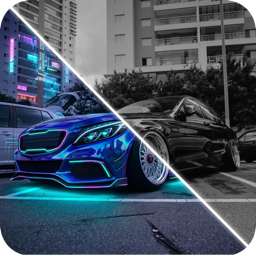
Car Wrap Visualizer: Preview a Wrap on Your Car Before Paying
A car wrap visualizer shows a vinyl wrap on a photo of your own car. Learn how to use one, which finishes to compare, and how to turn a preview into a quote.
By Ayoub Farid · · 3 min read
A full vehicle wrap is a big decision. It usually costs as much as a good set of wheels and stays on the car for years. Yet most people choose the color from a tiny swatch or from photos of a completely different car. A car wrap visualizer lets you see the film on your car first.
What a car wrap visualizer shows
A good visualizer takes a photo of your car and replaces only the painted surfaces with the wrap color and finish you pick. It should:
- keep glass, tires, lights and trim untouched (or let you choose a chrome delete)
- preserve reflections and shadows so the finish reads correctly
- handle special films like satin, matte, metallic and color-shift
- show partial wraps such as roofs, mirrors and two-tone designs
AI-based visualizers are much better at this than old template tools, which only worked if your exact model was in their library.
A workflow that saves money
1. Shortlist by mood, not by name
Wrap film names ("Satin Dark Basalt", "Gloss Kingfisher") mean little. Start with a direction (dark and stealthy, bright and loud, classic, futuristic) and preview 6 to 10 colors in it.
2. Narrow to three, then compare finishes
For your top three colors, preview gloss, satin and matte. Finish changes the character of a car more than most people expect; see matte vs satin vs gloss.
3. Add your real wheels and trim
If you're keeping your wheels, check them against each finalist. If you're changing wheels too, preview both together. The wheel visualizer post covers that step.
4. Look at it tomorrow
Color choices made at midnight feel different in the morning. Save your favorites and come back after a day.
5. Bring the preview to the shop
Show your installer the image along with the exact film you want sampled. Ask how they handle door jambs, edges and seams, which a visualizer cannot show. Our guide to choosing a wrap shop lists the right questions.
Things a visualizer can't show
- Seams and relief cuts. On complex bumpers, installers sometimes need seams. Ask where they'll be.
- Door jambs. Most wraps don't cover jambs, so you'll see the old color when doors open.
- Exact color. Screens vary. Always see a physical sample in daylight.
- Durability. Film brand and installer quality matter more than color. See how long a car wrap lasts.
Popular wraps to preview first
If you don't know where to start, these work on most body shapes: satin dark grey, gloss British racing green, satin emerald, midnight purple, anodized bronze, frost white pearl and a purple-teal color-shift. Our car wrap colors guide covers 30 more.
Try it on your own car
CarForge's Apply Color tool works as a car wrap visualizer for any car or motorcycle: upload a photo, pick from 20+ trending wraps in matte, satin, gloss and chameleon finishes, and compare with the original using the before/after slider.
Frequently asked questions
Can I see what a wrap looks like on my car before buying?
Yes. A car wrap visualizer like CarForge applies the wrap to a photo of your own car so you can compare colors and finishes before booking an install.
Are wrap visualizers accurate?
They're accurate for overall look and finish but not exact color. Use them to shortlist, then confirm with a physical film sample outdoors.
Do I need my car's exact model for a wrap visualizer?
Not with AI-based tools. They work from your photo, so modified or rare cars are fine.
What is the most popular car wrap color?
Satin and matte greys and blacks remain the most common choices, with deep greens, purples and color-shift films the most popular statement colors.
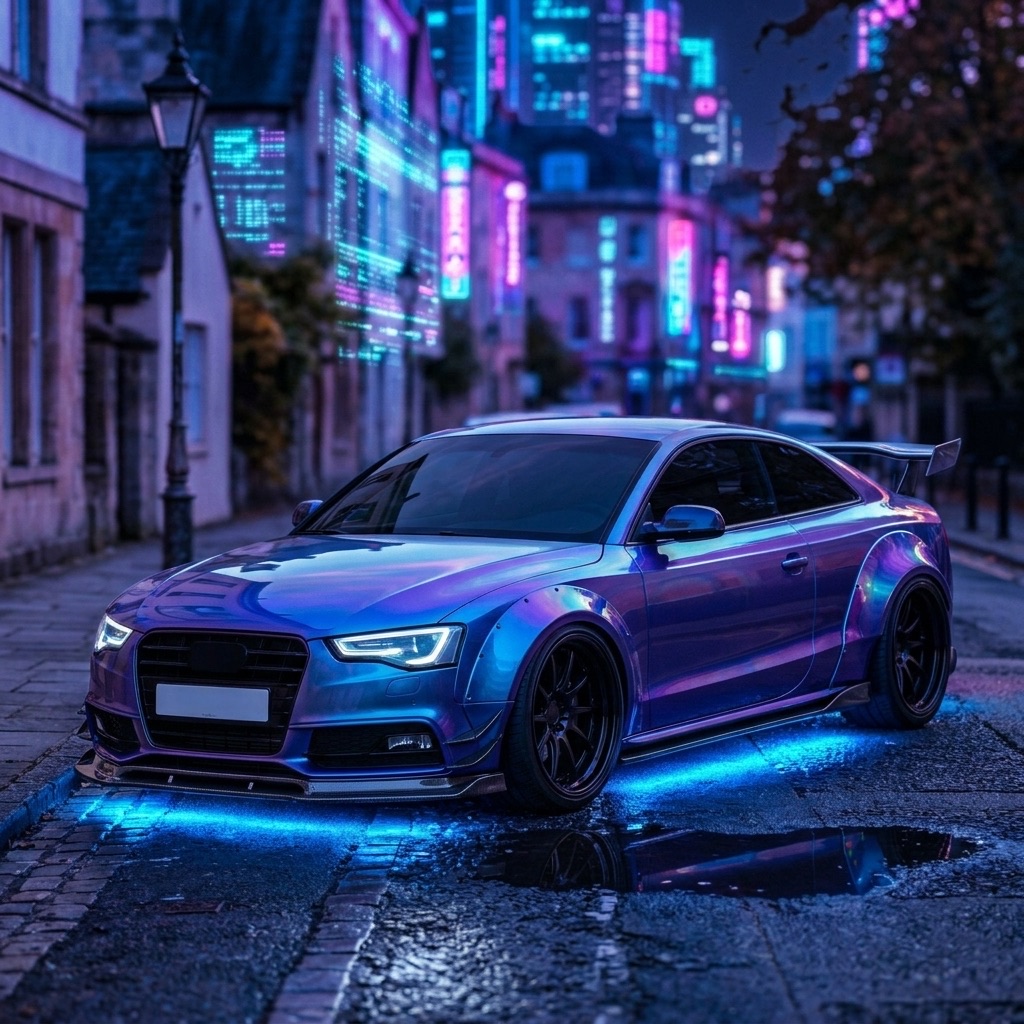
Try it on your own car
Identify any car. Redesign yours in seconds.
Snap a photo to get the make, model and specs, or try paint, wraps, wheels, body kits and 16+ AI styles on your own car. On iPhone and iPad.
Download CarForge